Keep personal photos and videos in an encrypted gallery, with compression that helps you manage the space they use. PhotoVault brings a private photo library, albums and text search together on your iPhone or iPad.
A PRIVATE GALLERY YOU CONTROL
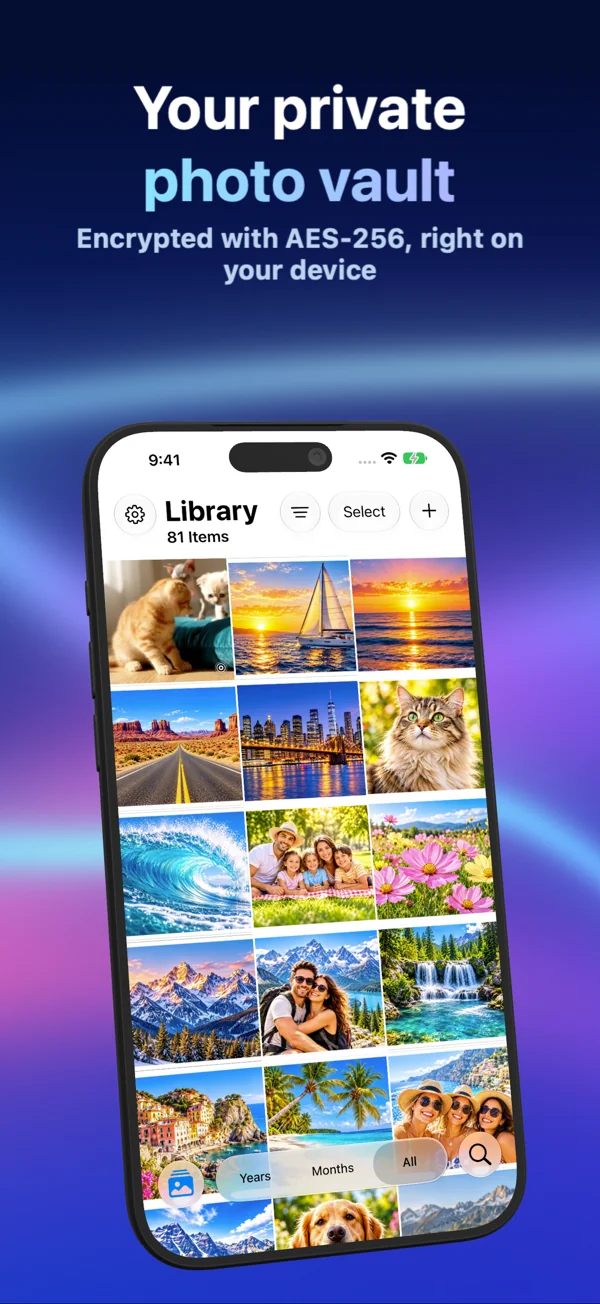
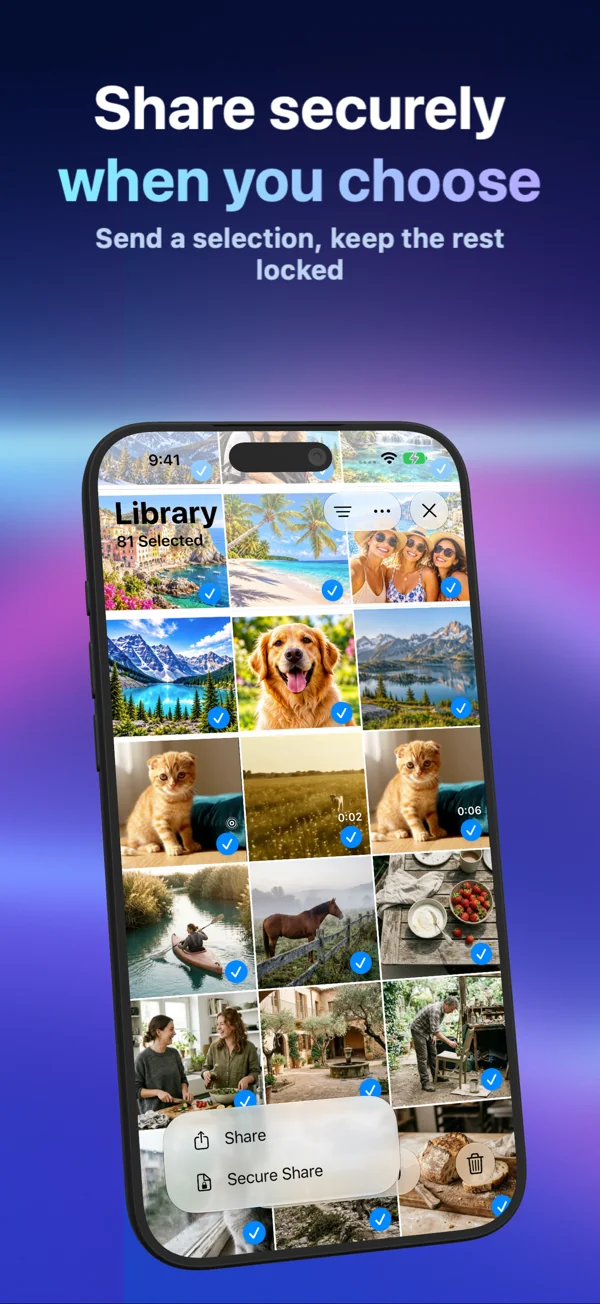
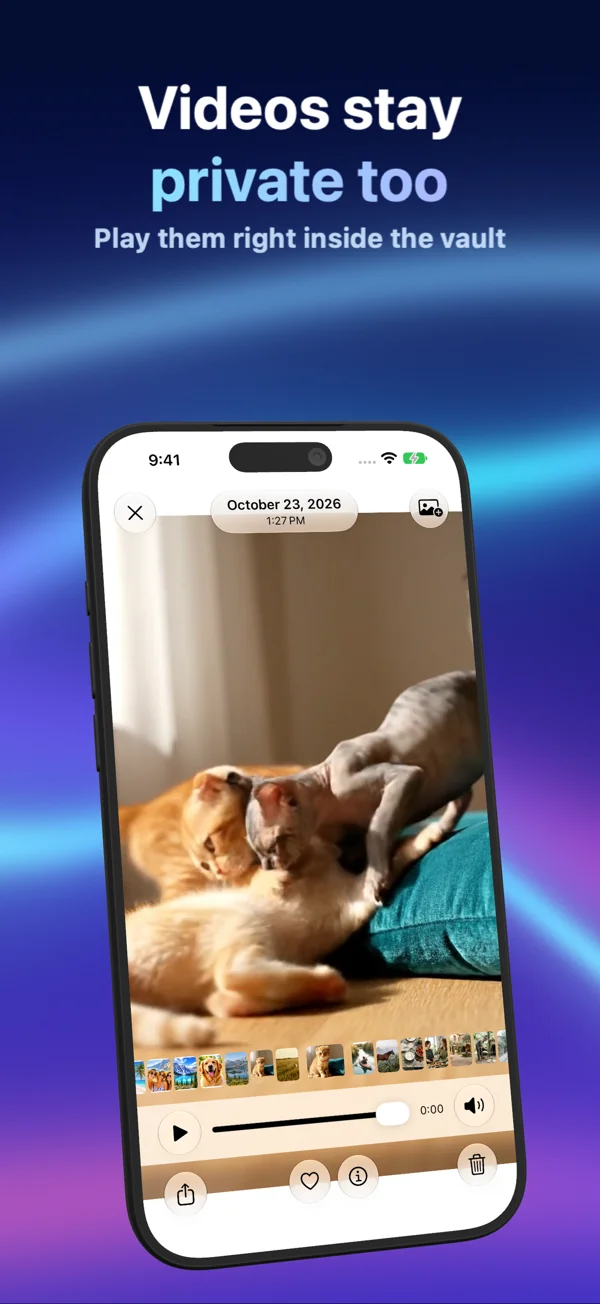
Choose the pictures and videos you want to import from Photos. Browse your collection, open images and play videos inside the app. Keep travel memories, family pictures, screenshots and photographed receipts together in one place.
Importing creates an app copy. It does not automatically remove the original from Photos, hide that original or change the settings of iCloud Photos. You decide what to import.
ENCRYPTION AND AN APP LOCK
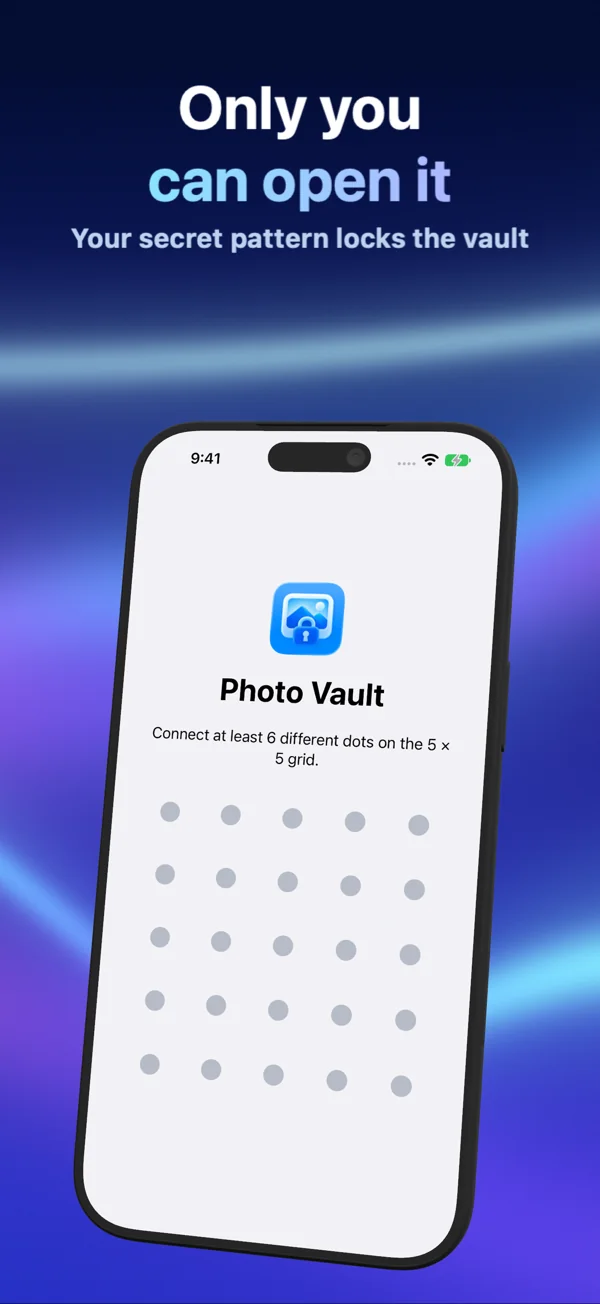
Media and gallery metadata are encrypted on your device. Choose a password, a pattern or the device authentication available on your iPhone or iPad. Device authentication can use Face ID, Touch ID or the device passcode, depending on your hardware and settings.
PhotoVault locks when it enters the background and asks you to unlock it when you return. You can change the unlock method in Settings.
COMPRESS WITH A CLEAR QUALITY TRADE-OFF
New Lossy HEVC imports store compressed photo representations rather than keeping a full original image file alongside each picture. This can reduce storage use, but the result depends on the source media and the compression settings. There is no fixed saving for every library.
Lossy compression can change fine detail and other image properties. A compressed copy is not a byte-for-byte original. Keep independent originals when exact image quality, editing latitude or a particular source format matters.
ALBUMS THAT FIT YOUR COLLECTION
Create and name albums to group related items. Albums refer to items already in the archive, without making another media copy.
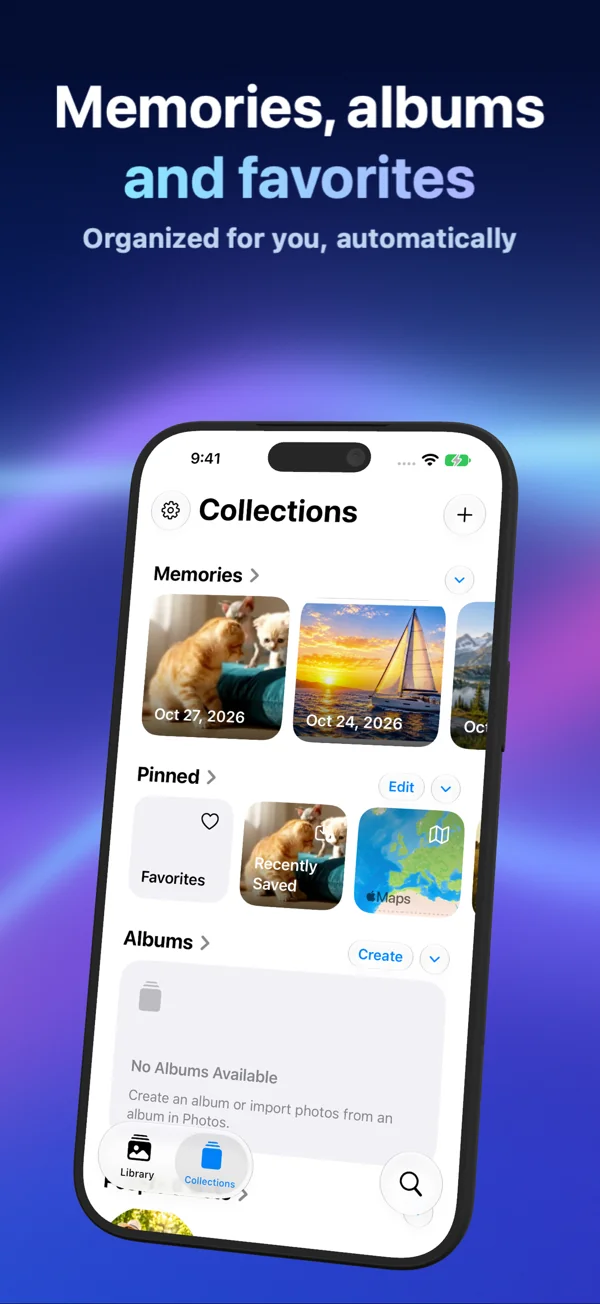
Group a journey in one album, keep photographed receipts together or give screenshots a place of their own. Pin the collections you open most often and arrange them to suit your routine.
BROWSE BY TIME AND PLACE
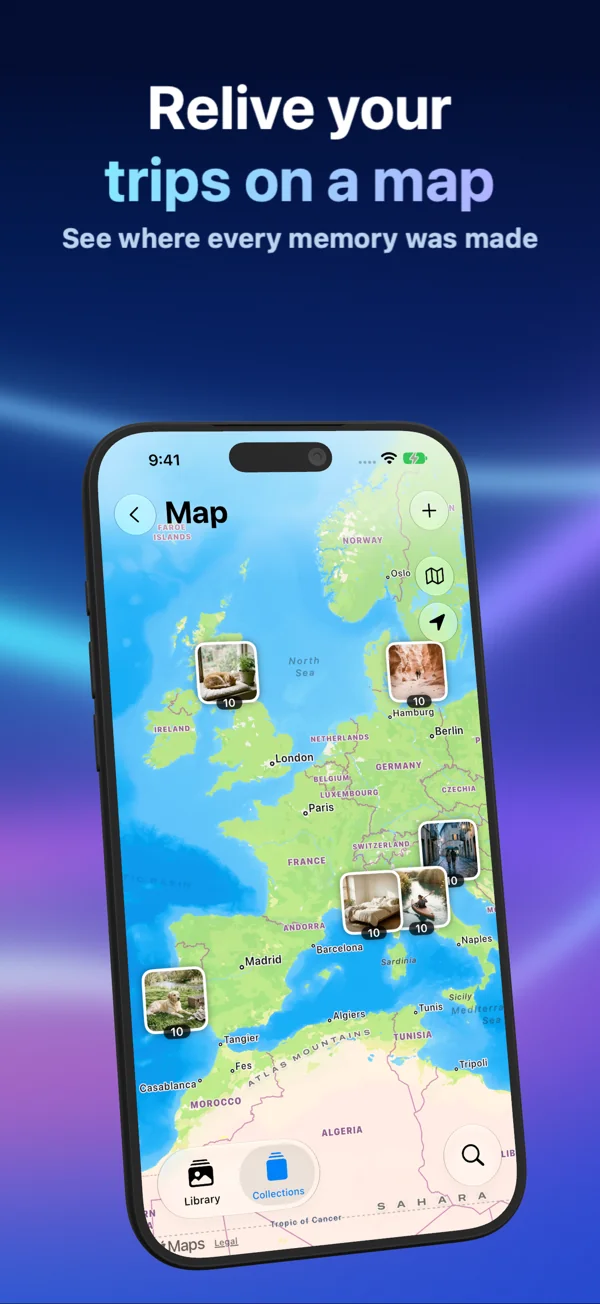
Sort by capture date or recently added items, and group the timeline by month or year. Return to a holiday by its date, then open the related album. For items with location information, the map offers another way to revisit where a moment happened.
FIND MORE THAN A THUMBNAIL
Search using recognized text, dates, filenames, album names and available media information. Text recognition can help you find a receipt, a sign or a screenshot without remembering exactly what the picture looked like. Try a shop name from a receipt, a word in a screenshot or a familiar album title. Combine what you remember with the capture date to narrow your search. Recognition runs on the device and can miss words in small, blurred or stylised text.
Retrieving an original stored in iCloud Photos can require a network connection, and place-name lookup may use Apple's services.
BEFORE YOU REMOVE ANYTHING
Review imported items before deleting them from Photos. Removing a Photos original is a separate action with Apple's confirmation. Storage recovery also depends on how Photos and iCloud Photos handle that deletion.
Deleting media from the PhotoVault gallery is permanent after confirmation. The vault has no recovery bin or undo for deleted media.
PLAN FOR YOUR IMPORTANT MEMORIES
The archive encryption key is tied to this device. Losing access to that key can make the archive unreadable; your unlock password or pattern cannot replace it. Keep independent originals outside the app, especially before changing devices or reinstalling. PhotoVault is not a cross-device backup or recovery service.
Make room for a more organised private collection, with encryption, useful browsing and an honest choice about compression quality.
On-Device AES-256-GCM Vault
Encrypted local media & metadata index on iPhone and iPad. Unlock with Password, Pattern, or Face ID / Touch ID. Zero Arte Soft cloud servers.
HEVC Storage Compression & OCR
Optional lossy HEVC media compression reclaims gigabytes while keeping albums, timeline, map coordinates, and on-device OCR text search fast.
Secure Share & Flexible Plans
Export password- or pattern-encrypted archives via Secure Share. Free to download ($0.00) with optional Personal & Family Monthly, Yearly, and Lifetime plans.
 PhotoVault: Encrypt & Compress