 Photo Vault
PhotoVault: Encrypt & Compress lets you import cropped identity card and passport reference images into a separate on-device encrypted gallery on iPhone and iPad (keeping quick offline access to family paperwork in one locked index), protected by a tactile pattern lock independent of Face ID passcode fallback, organized into zero-copy pinned albums. Importing creates a separate vault copy—verify crisp document numbers, MRZ lines, and issue dates and keep an independent backup before deleting originals from Apple Photos.
Why Passport, Driver License & ID Scans Need More Than Apple’s Default Recents Grid
When storing cropped identity card and passport reference images keeping quick offline access to family paperwork in one locked index, leaving items inside the main Apple Photos library exposes them to casual swiping, Memories suggestions, Shared Library rules, and any person who knows your device passcode (since Apple’s Hidden album falls back to the iPhone passcode).
Importing selected items into PhotoVault: Encrypt & Compress (id6824412013, free to download on iOS 26+ and iPadOS 26+) places both the media and its local metadata index under on-device encryption with an installation key stored on your device, with zero Arte Soft cloud accounts or upload servers.
Configuring Custom Pattern Lock + Pinned Collections
This setup uses a tactile pattern lock independent of Face ID passcode fallback, organized into zero-copy pinned albums. If someone in your environment knows your iPhone unlock passcode, choose a dedicated vault Password or Pattern inside PhotoVault Settings rather than system biometric authentication, because iOS system authentication permits device-passcode fallback.
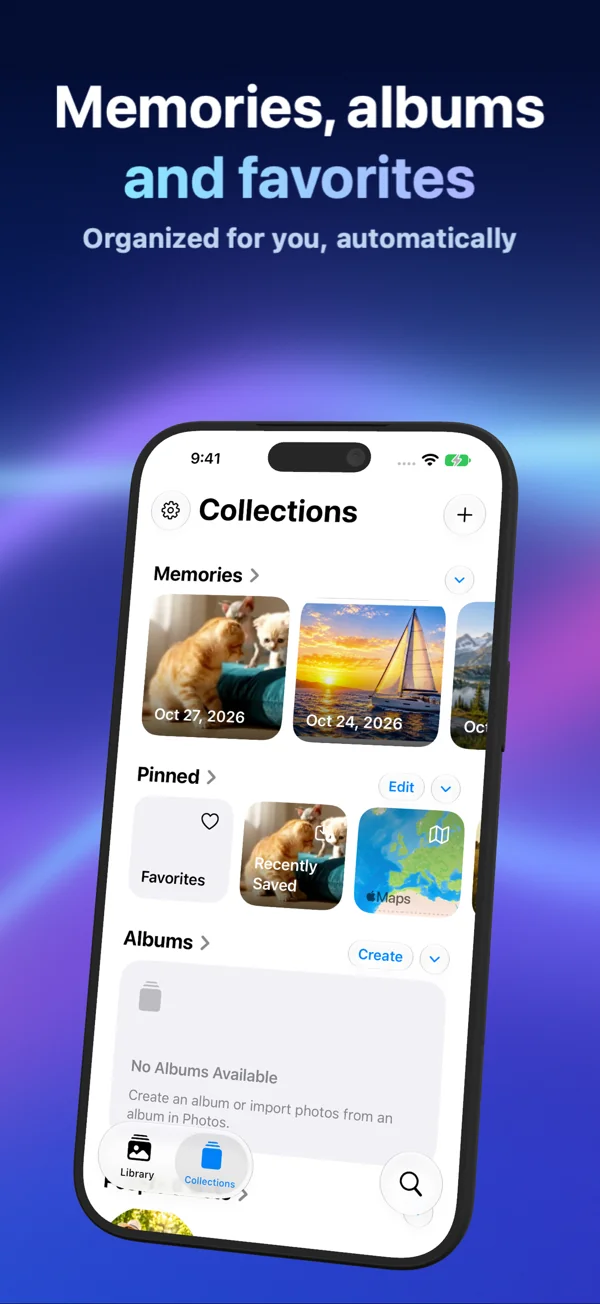
PhotoVault locks automatically whenever the app enters the background. Inside the vault, albums reference existing archive entries without duplicating files, while on-device OCR text search and year/month/map views help locate cropped identity card and passport reference images quickly—though OCR can miss tiny or blurred characters, so descriptive album names remain essential.
Checking Quality (Crisp document numbers, mrz lines, and issue dates) & Keeping Recoverable Backups
New Lossy HEVC imports store compressed representations rather than full original files, saving substantial iPhone or iPad flash space depending on source complexity. Because lossy compression can alter fine detail, always test a small batch of cropped identity card and passport reference images and inspect crisp document numbers, MRZ lines, and issue dates before importing a large collection.
Remember that PhotoVault’s archive key is bound to your device installation and forgotten vault passwords or patterns cannot be reset by Arte Soft support. Export critical items or verify a password/pattern-encrypted Secure Share archive—and retain an independent backup outside the phone—before deleting originals from Apple Photos and emptying Recently Deleted.
Structured Comparison & Practical Trade-Offs
| Capability | Default Apple Photos / Hidden Album | PhotoVault: Encrypt & Compress |
|---|---|---|
| Access Control | Apple Hidden Album uses Face ID / Touch ID with iPhone passcode fallback | Custom Password, Pattern, or system biometric unlock (Custom Pattern Lock + Pinned Collections) |
| Cloud Exposure | Syncs across iCloud Photos devices unless disabled | 100% local on-device encrypted storage; no Arte Soft cloud server |
| Storage Footprint | Full raw file size remains on device/iCloud | Optional lossy HEVC compression reduces vault size (verify fine detail first) |
| Finding Specific Items | Mixed with everyday camera roll search | Dedicated vault albums, year/month timeline, map, and on-device OCR for Passport, Driver License & ID Scans |
| Transfer & Backup | Tied to Apple Account sync or unencrypted exports | Secure Share creates password- or pattern-encrypted archive packages |
4-Step Verification Checklist for Passport, Driver License & ID Scans
- Download PhotoVault: Encrypt & Compress free on iPhone or iPad and configure Custom Pattern Lock + Pinned Collections in Settings.
- Select a small test sample of 5–10 cropped identity card and passport reference images from Apple Photos and import them into a clearly named collection.
- Open the imported items inside PhotoVault, zoom in to verify crisp document numbers, MRZ lines, and issue dates, and test an export or Secure Share package.
- Confirm you hold an independent backup of irreplaceable originals on an encrypted drive or computer before removing copies from Apple Photos and clearing Recently Deleted.
Frequently Asked Questions
Does importing passport, driver license & id scans into PhotoVault automatically delete them from Apple Photos?
No. Importing creates an encrypted copy inside PhotoVault. Any original in Apple Photos or iCloud Photos stays untouched unless you separately confirm deletion through Apple’s system prompt.
Should I use Password, Pattern, or Face ID for caregiver & household records?
Use a dedicated Password or Pattern whenever another person knows your iPhone or iPad passcode, because iOS device authentication allows passcode fallback when Face ID or Touch ID fails.
Is lossy HEVC compression safe for passport, driver license & id scans?
Lossy HEVC compression saves iPhone storage, but it is not a byte-identical copy. Always inspect crisp document numbers, MRZ lines, and issue dates on a test import and keep independent originals whenever exact pixel or document fidelity is required.
What does PhotoVault cost on iPhone and iPad?
PhotoVault: Encrypt & Compress is free to download ($0.00) on the App Store for iOS 26+ and iPadOS 26+, with optional Personal and Family Monthly, Yearly, and one-time Lifetime plans (Family Sharing supported on Family plans).
Related Guides & Tools
- All Encrypted Vault Guides (1,120 Scenarios)
- Encrypting Passport, Driver License & ID Scans for Caregiver & Household Records: Face ID / Touch ID Unlock + Lossy HEVC Compression
- Encrypting Medical Letters, Imaging & Lab Reports for Caregiver & Household Records: Custom Pattern Lock + Pinned Collections
- Encrypting Passport, Driver License & ID Scans for Property & Move-In Inspection Logs: Face ID / Touch ID Unlock + Lossy HEVC Compression
- Secure Share & Backup Workflows Hub
- iPhone & iPad Vault Storage Breakdowns
- Encrypted Vault Storage & Cloud Savings Calculator
- Before Deleting Originals from Apple Photos Checklist